Introduction to the new HTML element <geolocation>
posted on
There is a new HTML element called geolocation. I checked it out and here's what I learned.
The <geolocation> element
The <geolocation> element provides a button that, when activated, prompts the user for permission to access their location. Originally, it was designed as a general <permission> element, but browser vendors indicated that implementing a “one-size-fits-all” element would be too complex. The result was a single-purpose element, probably the first of several.
<geolocation>
<strong>Your browser doesn't support <geolocation>. Try Chrome 144+</strong>
</geolocation>When a user clicks the button, three things can happen:
- If they haven't granted permission yet, the browser will ask them for permission.
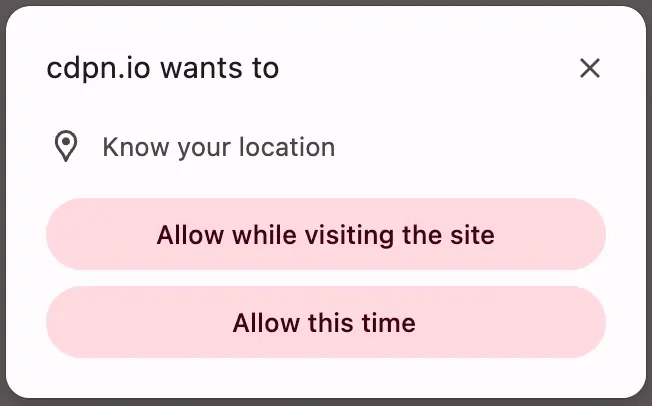
- If they have previously denied permission, they can undo it or keep denying.
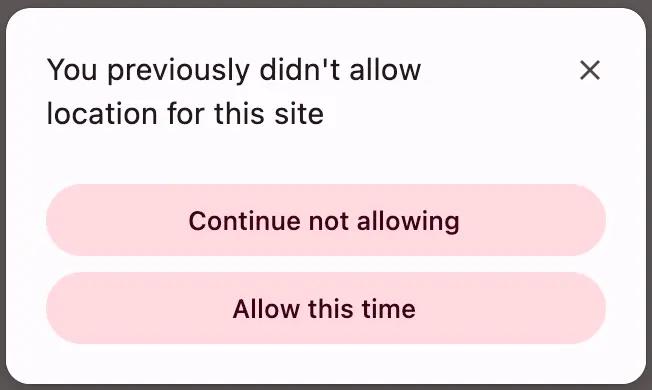
- If they have granted permission already, clicking the button again will get the current location without re-prompting. It acts like a refresh button.
Attributes
Retrieving the user's location is the core functionality of the element, but you can adjust what and how you get it.
accuracymode
Using the accuracymode attribute, you can enable high accuracy to get the most accurate position. The result may be more precise, but it can also result in slower response times and increased power consumption. Another factor is privacy; if you don't need the user's exact position, it's probably best to leave it at the default (approximate).
<geolocation accuracymode="precise">
Your browser doesn't support <geolocation>.
</geolocation>When you set accuracymode to precise, the icon and button text change from a pin and “Use location” to a crosshair and “Use precise location”.
accuracymode="precise" gives you the same or even a worse result than the default setting. To see a difference, try the demo on a smartphone and outside of a building.
autolocate
If you set the autolocate attribute and the user has previously granted permission to use their location, the element will attempt to retrieve the location when it loads. That means the onlocation event will fire on page load, even if the user doesn't press the button.
<geolocation autolocate>
<strong>Your browser doesn't support <geolocation>. Try Chrome 144+</strong>
</geolocation>watch
If you set the watch attribute, the element fires events continuously as the user moves. I tested this by moving from one room to another in my office, and it worked really well.
<geolocation watch>
<strong>Your browser doesn't support <geolocation>. Try Chrome 144+</strong>
</geolocation>JavaScript
To retrieve and process the user's location, you can listen for the onlocation event and access the read-only position property, which returns the GeolocationPosition object once available.
It contains the coords property and a timestamp. The most relevant information inside the coords property is the latitude, longitude, and the accuracy, which denotes the position accuracy radius in meters.
const geo = document.querySelector('geolocation');
geo.addEventListener('location', e => {
  console.log(e.target.position)
})
Accessibility
The geolocation element is focusable by default, and it has an implicit button role. I tested it using a keyboard and VoiceOver on macOS. Focus management worked fine in my limited test. There isn't much to say about the element's accessibility, since it's basically a button.
There's one interesting factor, though: styling constraints.
Styling
There are a couple of interesting points to note about gelocations styling.
A new pseudo-class
You can use the new :granted pseudo-class to style the button differently when permission has been granted.
:granted {
  border: 4px solid green;
}
Constraints
While geolocation looks like a button, you can't style it like a button. There are certain styling constraints to ensure user trust and prevent deceptive design patterns. The following properties are limited:
- opacity
- distorting effects, e.g. using transform
- block-size, max-block-size
- inline-size, max-inline-size
- outline-offset
- letter-spacing
- word-spacing
/* All of these declaration have no or limited effect */
geolocation {
  opacity: 0;
  filter: opacity(0);
  transform: scale(0);
  inline-size: 2px;
  block-size: 2px;
  overflow: hidden;
  outline: 5px solid red;
  outline-offset: -10px;
  clip-path: inset(50%);
  letter-spacing: 2em;
  word-spacing: 2em;
}In the introduction post for the element, the authors also state that contrast is checked and that the following properties are constrained, but I can't confirm this.
- font-size
- margin
geolocation {
    background-color: #000;
    color: #000;
    font-size: 1px;
    margin: -20px;
}Update 06.03.: I was wrong about that. There are contraints, but just not how I expected. You can set the font size and color as you please, but if the contrast is below 3:1 or the font size smaller than small or its computed value (13px by default in my tests), then the button just doesn't work. Wild!
Localisation
The button labels are in English because the natural language of my page is English. If it were German, the button text would reflect that because it respects the lang attribute.
<geolocation lang="de">
<strong>Ihr Browser unterstützt <geolocation> nicht. Verwenden Sie Chrome 144+</strong>
</geolocation>Browser support
The element is currently only available in Chrome 144+, but Mozilla and WebKit have positive positions on the new element, so it's likely they'll implement it as well.
In the meantime, you can use a polyfill or progressively enhance the element.
HTML
<geolocation autolocate>
  <button onclick="updateMap2(event)">
    Use my location
  </button>
</geolocation>
<div role="status"></div>
JS
const getLocation = (e) => {
  let coords;

  if (e.coords) {
    coords = e.coords;
  } else {
    coords = e.target.position.coords;
  }

  return `<dl>
    <dt>Accuracy</dt>
    <dd>${coords.accuracy}</dd>
    <dt>Latitude</dt>
    <dd>${coords.latitude}</dd>
    <dt>Longitude</dt>
    <dd>${coords.longitude}</dd>
  </dl>`
}

const updateMap = e => {
 let result, geolocation = ('HTMLGeolocationElement' in window);

  if (geolocation) {
    result = getLocation(e);
    e.target.nextElementSibling.innerHTML = result;
 } else {
   navigator.geolocation.getCurrentPosition(e => {
    result = getLocation(e)
    e.target.parentNode.nextElementSibling.innerHTML = result;
   });
 }
}
const geo = document.querySelector('geolocation');
geo.addEventListener('location', updateMap)Additional resources
- Introducing the geolocation HTML element
- An origin trial for a new HTML permission element
- Bug: getCurrentPosition() times out while watchPosition() is active
- Bug: exclude decorative icons from the accessibility tree
PS
Today I learned that you can only use up to 3 geolocation elements on one page.
Updates
I made some updates:
06.03.26
Added info about the behaviour when contrast is to low.